Tiny Rooms Design And Decorate Tiny Rooms Controls Guide
PC and mobile inputs for decorating, recoloring, camera work, voting, and stuck UI recovery.
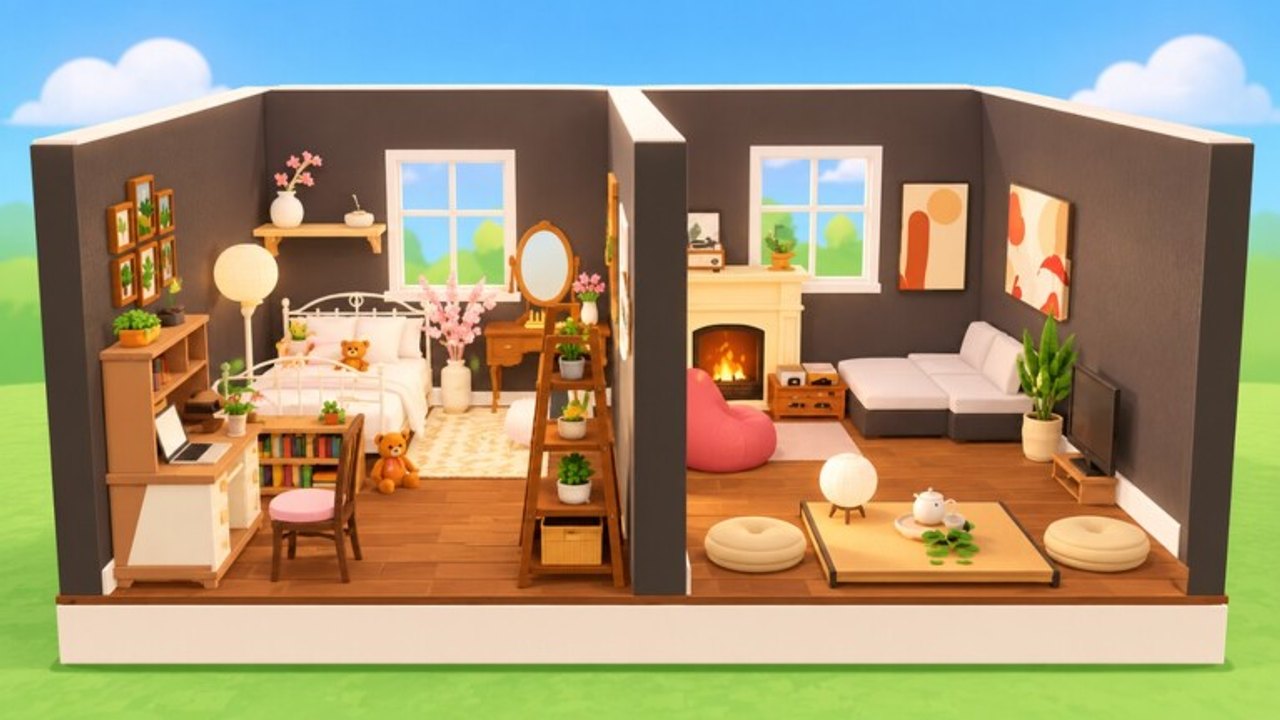
Controls decide whether your cozy idea survives the timer. Tiny Rooms: Design And Decorate asks you to place, move, rotate, and recolor furniture inside small shells, then navigate the visit and vote UI before the next round. This page covers practical PC and mobile habits, camera control, voting screens, and the leave-and-rejoin fix that clears stuck build menus in similar Roblox decorate experiences.
Use this alongside Getting Started for the round loop, How to Win for design priorities, and Theme Design Tips so your inputs serve a theme plan instead of random clicking.
Mindset before the keybinds
Place ugly anchors first, then refine. Drop the bed or sofa early, recolor toward soft colours, add a warm lamp and fluffy rug, and only then chase micro props. Controls exist to execute that plan. If you learn hotkeys without a theme checklist, you will still finish late.
Keep graphics high enough to judge lamp warmth and rug texture. Cozy voting is visual. An unreadable blur makes recolor decisions guesswork.
PC controls and habits
On keyboard and mouse, expect standard Roblox movement with click-driven furniture tools.
- Move your avatar: WASD, with Shift to sprint if enabled in your Roblox settings.
- Move camera: right-mouse look or drag, scroll wheel to zoom, and occasional middle-mouse or key orbit if your client mapping allows it.
- Open catalog: use the on-screen furniture or inventory button shown during the decorate phase.
- Select a catalog item: left click the piece you want.
- Place or confirm: left click a valid floor or wall surface when the preview looks aligned and unblocked.
- Rotate: use the on-screen rotate control, an R-style rotate key if present, or rotation handles on the selected piece until the face edge points into the room.
- Move an existing piece: select it, then drag along the floor or use nudge arrows if the UI offers them.
- Recolor: with the piece selected, open swatches or colour slots and apply soft creams, muted pinks, sage, terracotta, or warm wood tones that match your theme.
- Delete or remove: select the piece, then use the trash or delete control. Clearing mistakes early is faster than fighting overlaps.
PC advantage is precision. Use it to align rugs flush to walls, seat chairs with even spacing, and park lamps where glow kisses the focal furniture. Zoom out after each major placement to check balance, then zoom in for fine nudges.
PC speed tips
- Recolor immediately after placing a large piece so later props inherit the palette.
- Rotate before you nest items tightly; spinning a sofa after side tables are down wastes time.
- Prefer keyboard movement to walk your camera path the way voters will walk it.
- If a preview stays red or blocked, delete the colliding prop instead of forcing the new piece.
Mobile controls and habits
Touch screens trade precision for convenience. Simplify plans.
- Move: virtual joystick or tap-to-walk depending on your Roblox touch settings.
- Camera: one-finger drag to look, pinch to zoom when the client supports it.
- Select and place: tap a catalog item, then tap the floor or wall preview to commit.
- Rotate: rely on on-screen rotate buttons rather than tiny handles that fight thick fingers.
- Move placed items: tap to select, drag slowly, release when the shadow or outline looks centered.
- Recolor: open the colour panel after selection; apply a short soft palette and stop fiddling.
- Delete: select, then tap trash or remove.
Mobile players should favor fewer large pieces: one strong sofa or bed, one rug, one or two lamps, and a plant. Micro clutter is hard to place accurately and easy to mis-tap during the final minute.
Mobile speed tips
- Increase touch sensitivity only if drags feel sticky; oversensitive cameras make rug alignment worse.
- Hold the device so thumbs reach rotate and confirm buttons without covering the preview.
- After each place, pinch out to confirm the room still reads as cozy from the doorway.
- Avoid stacking tiny wall items that require pixel-perfect taps.
Camera habits that improve builds
Camera work is part of controls, not a separate skill tree.
- Doorway view: zoom out until you can see the entry and the focal furniture together.
- Corner view: check whether lamps actually light the rug and seating.
- Height view: for lofts and attics, confirm both vertical zones are readable.
- Walk path: move your avatar through the room to catch blocked lanes before voting starts.
If the camera clips into walls inside tiny shells, back up and use a wider FOV feeling by zooming out rather than jamming into corners.
Voting UI
When the decorate phase ends, the game shifts into visit and vote flow. You will move between other players’ rooms and submit votes for the cosiest builds. Controls here are mostly navigation and confirm:
- Follow on-screen prompts to enter the next room or open the vote panel.
- Use normal movement and camera look to inspect lighting and theme fidelity.
- Confirm your vote with the highlighted button; do not spam taps or clicks if the UI lags.
- Vote for rooms that feel warm, soft, and theme-true so you train your own eye.
If a vote button does not respond, wait a second for replication, then try once more. Repeated spam can feel like the UI is broken when it is only delayed.
Troubleshooting a stuck build UI
Decorate UIs in Roblox experiences sometimes stop accepting clicks or taps: catalog opens blank, previews freeze, rotate does nothing, or recolor panels refuse to apply. The most reliable recovery in similar games is simple:
- Leave the experience cleanly.
- Rejoin from the Roblox game page.
- Wait for the next full round rather than fighting a half-loaded menu.
- If it fails again, relaunch Roblox or check your connection, then rejoin once more.
Also try toggling out of any emote or seated state, closing extra Roblox menu overlays, and making sure you are not in a photo or shift-lock mode that steals input. On mobile, rotating the device or briefly switching apps can desync touch focus; returning to a fresh session is still faster than ten minutes of dead taps.
Do not delete your whole room in panic if only one tool is stuck. Recover the session first, then edit.
Practice drill for ten minutes
- Join a round and place a bed or sofa within the first thirty seconds.
- Recolor it to a soft palette.
- Add a fluffy rug and a warm lamp using only the controls on your device.
- Rotate seating to face the natural walk path.
- Delete one unnecessary prop on purpose to rehearse cleanup.
- During visits, practice camera orbits so you can judge others’ lighting quickly.
Repeat that drill until placement feels boring. Boring controls are the goal; taste then decides wins. When you are ready to turn fluent inputs into votes, read How to Win and theme recipes on Theme Design Tips. For category priorities after you can place confidently, open the Furniture Tier List.
Frequently Asked Questions
Quick answers for Tiny Rooms Design And Decorate players.
Does Tiny Rooms use unique keys beyond normal Roblox controls?
Movement follows standard Roblox input. Decorating relies on on-screen catalog, place, rotate, recolor, and delete controls that may vary slightly by device.
What should mobile players simplify?
Use fewer large pieces, on-screen rotate buttons, and a short soft palette. Avoid tiny prop spam that is hard to tap accurately.
The build menu will not click. What now?
Leave and rejoin the experience, then wait for a fresh round. Relaunch Roblox if the menu still ignores input after one clean rejoin.
How do I recolor furniture?
Select a placed piece, open the swatch or colour panel, and apply soft tones that match your theme before adding more props.
Where do I learn what to build once controls feel fine?
Continue with How to Win for vote strategy and Theme Design Tips for autumn bedroom, grandma living room, attic, balcony, and loft recipes.